
IPOD HI-FI - Speaker APPLE - Free user manual and instructions
Find the device manual for free IPOD HI-FI APPLE in PDF.


| Product type | Portable audio speaker |
| Brand | Apple |
| Model | iPod Hi-Fi |
| Power | AC adapter or 6 D (LR20) batteries |
| Connectivity | iPod dock connector, 3.5mm audio jack / Mini-Toslink optical input |
| Speakers | 2 long-range amplifiers, 1 woofer, bass-reflex ports |
| Remote control | Apple Remote infrared remote control included |
| Functions | iPod playback, volume adjustment, equalizer, treble/bass control |
| iPod compatibility | iPod with dock connector (adapters included for multiple models) |
| Audio input | Port for external audio devices (CD player, computer, etc.) |
| Display | Green status indicator (flashing/solid) |
| Maintenance | Clean with a soft, dry cloth; do not touch the membranes |
| Safety | Do not connect to speaker outputs; maximum input voltage 2V RMS |
| Remote batteries | 1 CR2032 battery |
| Included accessories | Remote control, power cord, dock adapters for iPod |
| Repairability | Spare parts not specified; Apple online support |
| Warranty | Visit Apple website for service instructions |
Frequently Asked Questions - IPOD HI-FI APPLE
User questions about IPOD HI-FI APPLE
0 question about this device. Answer the ones you know or ask your own.
Ask a new question about this device
Download the instructions for your Speaker in PDF format for free! Find your manual IPOD HI-FI - APPLE and take your electronic device back in hand. On this page are published all the documents necessary for the use of your device. IPOD HI-FI by APPLE.
USER MANUAL IPOD HI-FI APPLE
Apple Computer, Inc.
© 2006 Apple Computer, Inc. All rights reserved.
Apple, the Apple logo, AirMac, and iPod are trademarks of Apple Computer, Inc., registered in the U.S. and other countries. AirPort Express, iPod Hi-Fi, and MacBook are trademarks of Apple Computer, Inc.
Contents
5 iPod Hi-Fi User's Guide
29 iPod Hi-Fi ユーザーズガイド
53 iPod Hi-Fi Guide de l'utilisateur
79 iPod Hi-Fi Manual del usuario
iPod Hi-Fi
User's Guide
Contents
9 Chapter: 1 "Welcome"
10 "iPod Hi-Fi Front View"
11 "iPod Hi-Fi Rear View"
12 Chapter: 2 "Setting Up Your iPod Hi-Fi"
12 "Step 1: Plug In Your iPod Hi-Fi or Insert Batteries"
13 "Step 2: Connect Your iPod"
14 "Step 3: Play Music"
15 Chapter: 3 "Using Your iPod Hi-Fi"
15 "Connecting iPod"
16 "Changing iPod Screen Settings"
16 "Connecting Other Audio Devices or an iPod Without a Dock Connector"
18 "Adjusting the Sound"
20 "Using the Apple Remote"
23 "Saving Battery Life"
24 Chapter: 4 "Tips and Troubleshooting"
26 Chapter: 5 "Learning More, Service, and Support"
Congratulations on your new iPod Hi-Fi.
Your iPod Hi-Fi is a high-quality portable speaker system that plays music from any iPod. You can also use it to play music from other audio devices.
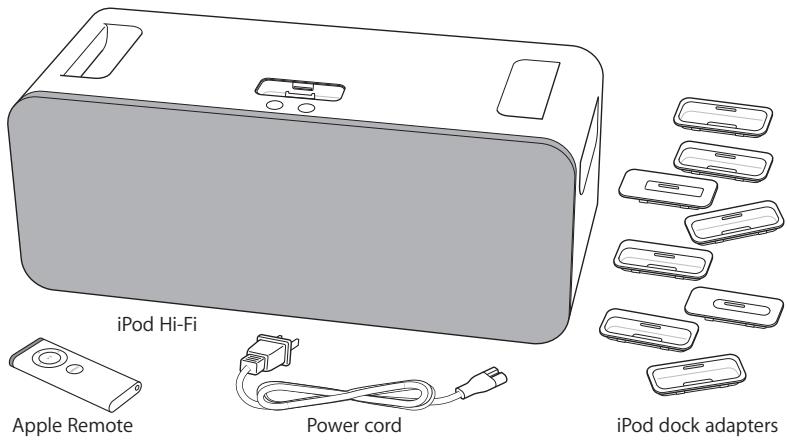
Note: Your power cord may look different from the one pictured here.
iPod Hi-Fi Front View
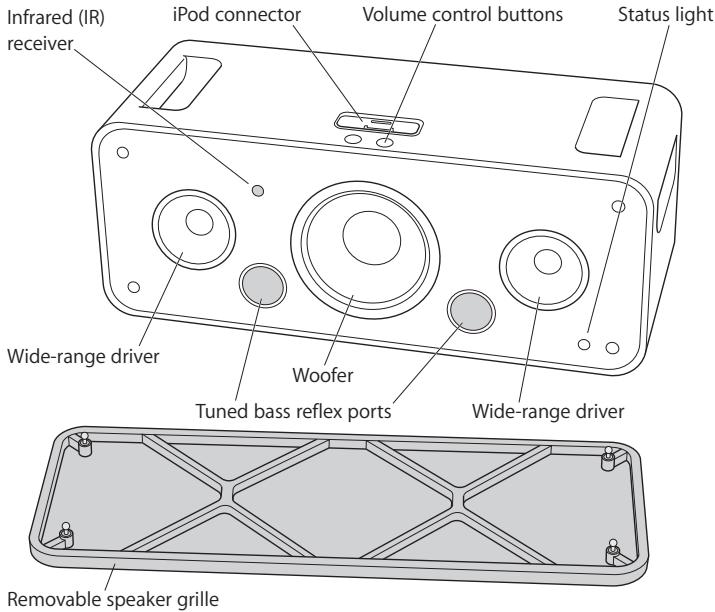
Note: You can use your iPod Hi-Fi with the speaker grille on or off. To best protect the speakers, leave the grille on. To avoid damage to the speakers, do not touch the speaker cones.
iPod Hi-Fi Rear View
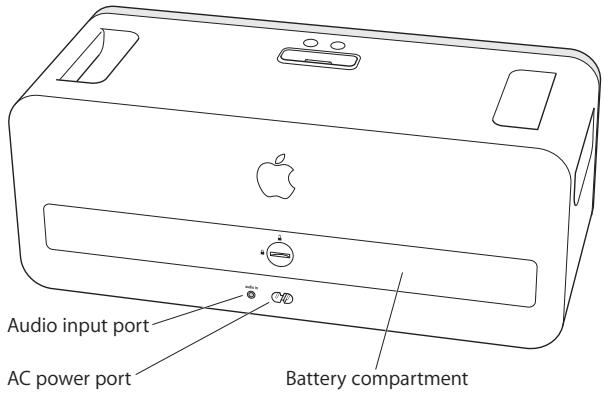
Setting Up Your iPod Hi-Fi
2
You can set up and start listening to music on your iPod Hi-Fi in a few easy steps.
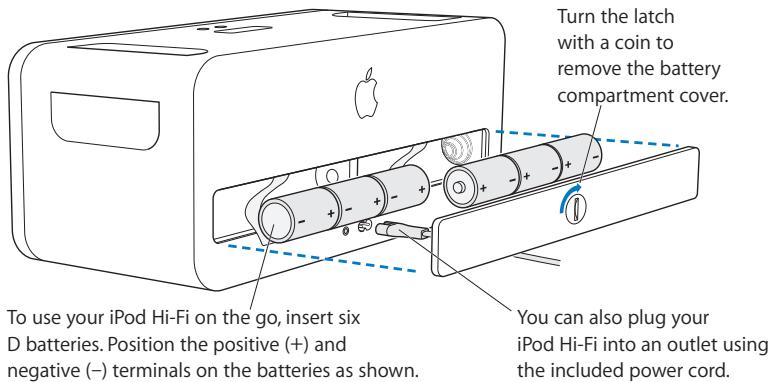
Step 1: Plug In Your iPod Hi-Fi or Insert Batteries
You can plug in your iPod Hi-Fi, or insert six D batteries to use it on the go.
Step 2: Connect Your iPod
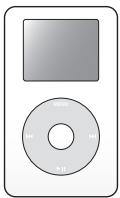
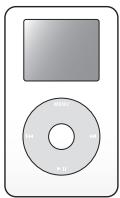
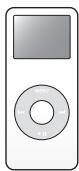
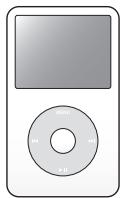
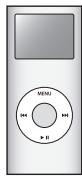
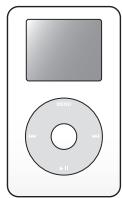
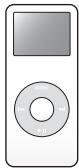
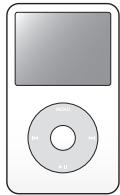
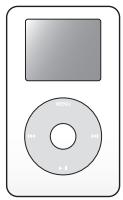
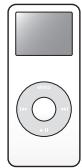
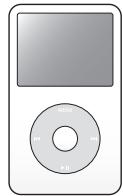
Choose the dock adapter that fits your iPod. Your iPod fits snugly into the correct adapter.
The number (4–11) shows which iPod fits
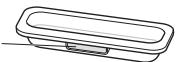
natural_image
Simple line drawing of a rectangular container with a side slot (no text or symbols)iPod
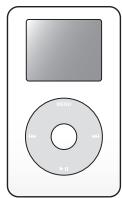
natural_image
Illustration of a vintage iPod with a CD and an external screen (no text or symbols)iPod with color display
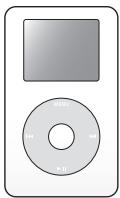
natural_image
Illustration of a vintage iPod with a CD and an external screen (no text or symbols)iPod nano
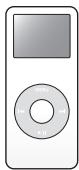
natural_image
Illustration of a vintage mobile phone with a screen and circular button (no text or symbols)iPod with video
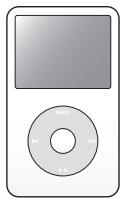
natural_image
Illustration of a iPod CD with front panel and back cover (no text or symbols)iPod nano (Second Generation)
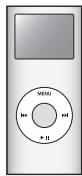

20GB and U2 Special Edition

20GB, 30GB, and U2 Special Edition
1GB, 2GB, and 4GB

30GB

2GB, 4GB, and 8GB

40GB

40GB and 60GB

60GB and 80GB
Note: If there is no dock adapter for your model of iPod included with your iPod Hi-Fi, you can purchase one at www.apple.com/ipodstore. If you have an older iPod that doesn't have a dock connector on the bottom, you can use an audio cable to connect it to the audio input port (see page 16).
Insert the dock adapter into your iPod Hi-Fi and connect your iPod. The iPod Hi-Fi status light blinks green.
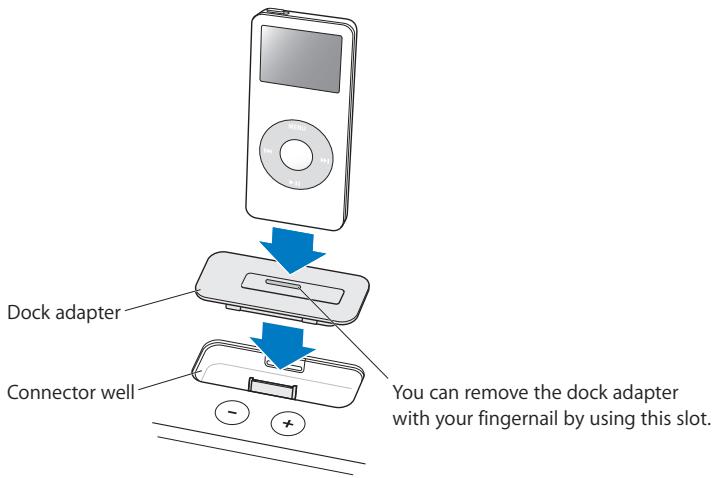
Step 3: Play Music
Browse for a song on iPod, then press Play (▶) and enjoy! Use the buttons on your iPod Hi-Fi or on the included Apple Remote to increase or decrease the volume.
Read on to learn about connecting iPod to your iPod Hi-Fi, connecting other audio devices, adjusting the sound, using the Apple Remote, and more.
Connecting iPod
You can connect any iPod to your iPod Hi-Fi. If your iPod has a dock connector, you can insert it into your iPod Hi-Fi. If your iPod doesn't have a dock connector, you can use an audio cable to connect it to the audio input port (see page 16).
To connect an iPod with a dock connector:
- Insert the dock adapter that fits your iPod, and then connect your iPod as shown on page 14. The status light blinks green.
Your iPod Hi-Fi includes dock adapters that work with most models of iPod with dock connectors. If you want to connect a different iPod, you can easily remove the dock adapter from your iPod Hi-Fi using a fingernail, insert the adapter that fits the other iPod, and then insert the other iPod.
If there is no dock adapter for your model of iPod included with your iPod Hi-Fi, you can purchase one at www.apple.com/ipodstore.
Changing iPod Screen Settings
With some newer iPod models, you can set how the backlight behaves when iPod is connected to your iPod Hi-Fi. You can also set whether you see the Now Playing screen or album artwork on iPod. You're able to change these settings if you see a Speakers item in the main menu when you connect your iPod.
To set how the backlight behaves, choose Speakers and follow these instructions:
- To set the backlight to be on when music is playing, set Backlight to While Playing.
Note: This is the default setting. - To set the backlight to turn on when you use the remote or the iPod controls, set Backlight to On Keypress.
■ To set the backlight to be on always, set Backlight to Always On.
■ To set the backlight to be off always, set Backlight to Always Off.
To set your iPod to display full screen album artwork (when artwork is available for that song):
- Choose Speakers and set Large Album Art to On.
Connecting Other Audio Devices or an iPod Without a Dock Connector
Your iPod Hi-Fi has a digital/analog audio input port. You can use it to play music from an iPod that doesn't have a dock connector, or from other audio devices, such as a CD player, stereo receiver, or computer. If you have an AirPort Express Base Station, you can connect it to your iPod Hi-Fi and play music from a computer in another room.
You connect audio devices or an older iPod using an audio cable with a standard 3.5 millimeter stereo miniplug. For higher-quality sound, you can connect an optical digital audio device using an optical digital audio cable with a Mini-Toslink connector.

3.5mm Stereo Miniplug (available separately)

natural_image
Simple line drawing of a cylindrical object with a pointed tip and two vertical rods at the bottom (no text or symbols)Optical digital cable with Mini-Toslink connector (available separately)
To play music from another audio device through your iPod Hi-Fi:
1 Connect an audio cable to the audio input port on your iPod Hi-Fi and to a line-level port or headphones port on the device.
WARNING: Distortion may occur if you connect your iPod Hi-Fi to a device with an output higher than 2V (volts) RMS. Do not connect your iPod Hi-Fi to the speaker outputs from another device. You could damage your iPod Hi-Fi.
2 Turn on the device and begin playing music from it.
See the documentation that came with the device for more information.
To switch playback from an iPod to a device connected to the audio input port:
If an iPod with a dock connector and an audio device are connected to your iPod Hi-Fi at the same time, your iPod Hi-Fi plays music from the iPod by default.
- Press and hold the Menu button on the remote. The status light blinks green, and the iPod pauses. To switch back to the iPod, press and hold the Menu button again.
You can also remove your iPod to switch to a device connected to the audio input port.
To play audio from your computer using your iPod Hi-Fi:
- You can connect an AirPort Express Base Station to your iPod Hi-Fi and stream audio wirelessly from a computer in another room.
For more information, go to www.apple.com/airportexpress.
In most cases, you can also connect a computer directly to your iPod Hi-Fi using an audio cable. If you have a computer with optical digital audio, such as a Mac Pro or a MacBook Pro, you can connect it using an optical digital cable for better quality sound.
Adjusting the Sound
To adjust the volume:
- Press the Volume Up (+) or Volume Down (−) button on top of your iPod Hi-Fi or on the included remote.
With some newer models of iPod, you can also adjust the volume using the iPod Click Wheel.
If you connect another audio device that has volume controls to the audio input port, such as a stereo receiver, you can also change the volume using the other device. Experiment to see which volume level sounds best when using the device with your iPod Hi-Fi.
To change equalizer settings:
If you're playing music through an iPod, change the settings on the iPod. Choose Settings > EQ and choose an equalizer preset.
- If you're playing music through a device connected to the audio input port, change equalizer settings on the device, if possible. See the documentation that came with the device.
To increase the bass or the treble:
With some newer models of iPod, you can also set your iPod Hi-Fi to increase the bass or the treble. You're able to adjust this setting if you see a Speakers item in the main menu when you connect your iPod.
- Choose Speakers > Tone Control, and then choose Treble Boost, Normal, or Bass Boost.
Using the Apple Remote
You can use the included infrared remote to control playback. Make sure there are no obstructions between the remote and your iPod Hi-Fi.
Using the Remote with iPod
To use the remote when playing music from an iPod connected to your iPod Hi-Fi, follow the instructions below.
| To | Do This |
| Play or pause a song | Press the Play/Pause (▶11) button. |
| Change the volume | Press the Volume Up (+) or Volume Down (−) button. |
| Skip to the next song | Press the Next/Fast-forward (▶▶) button. |
| Restart a song or play the previous song | Press the Previous/Rewind (◀◀) button once to restart a song. Press it twice to play the previous song. |
| Fast-forward or rewind a song | Press and hold the Next/Fast-forward (▶▶) or Previous/Rewind (◀◀) button. |
| Switch to a device connected to the audio input port | Press and hold the Menu button (or remove iPod). |
Note: You can't use the remote to skip to a different playlist. You must use the iPod controls to choose another playlist.
Using the Remote With Another Audio Device
To use the remote when playing music from a device connected to the audio input port, follow the instructions below.
| To | Do This |
| Change the volume | Press the Volume Up (+) or Volume Down (−) button. (You can also use the volume controls on the audio device.) |
| Mute or unmute the sound | Press the Play/Pause (▶II) button. |
| Switch to an iPod connected to your iPod Hi-Fi | Press and hold the Menu button. |
Changing the Battery
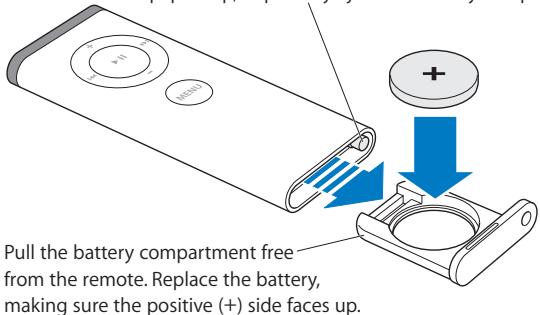
The remote includes a battery. When needed, you can replace it with a CR2032 battery.
Press this button with a small blunt object, such as a paper clip, to partially eject the battery compartment.
Pairing Your iPod Hi-Fi with the Remote
The included Apple Remote works with other compatible Apple products that have a built-in infrared (IR) receiver. You can set your iPod Hi-Fi to work only with the included remote so that remotes for your other devices don't affect your iPod Hi-Fi.
You may wish to pair your other Apple Remote-compatible devices with other Apple Remotes so that the remote you use with your iPod Hi-Fi doesn't affect those devices. See the documentation that came with the other devices for instructions.
To set your iPod Hi-Fi to work only with the included remote:
1 Connect your iPod Hi-Fi to an electrical outlet.
Note: If your iPod Hi-Fi has batteries, you don't need to connect it to an outlet.
2 Make sure other products that are compatible with the remote are not in range, and hold the remote close to your iPod Hi-Fi (about 3 to 4 inches away).
3 Press and hold the Menu and Next/Fast-forward (▶) buttons on the remote simultaneously for about six seconds. The status light blinks green several times.
Your iPod Hi-Fi now works only with the paired remote.
To reset your iPod Hi-Fi to work with all Apple Remotes:
- Follow steps 1 and 2 above. Then press and hold the Menu and Previous/Rewind (◀◀) buttons on the remote simultaneously for about six seconds. The status light blinks green several times.
Your iPod Hi-Fi now works with all Apple Remotes.
Saving Battery Life
When not in use, your iPod Hi-Fi enters a low-power standby mode to save battery life. However, if you don't plan to use your iPod Hi-Fi for an extended period, you may wish to remove the batteries to extend battery life even longer. For information on changing the batteries, see page 12.
Note: If you are using your iPod Hi-Fi with batteries (and not plugged into an electrical outlet) and you connect an iPod with a dock connector, the batteries in your iPod Hi-Fi will provide a minimum charge to iPod. If you don't want the batteries in your iPod Hi-Fi to expend power when iPod isn't playing, remove iPod from your iPod Hi-Fi. If your iPod Hi-Fi is plugged into an electrical outlet, the iPod battery charges until it is fully charged.
Most problems with your iPod Hi-Fi can be solved quickly by following the advice in this chapter.
If your iPod Hi-Fi won't play music or respond
- Make sure the volume isn't turned down all the way. If another audio device is connected, make sure the volume on that device isn't turned down all the way.
- Unplug your iPod Hi-Fi, wait about five seconds, and plug it in again. Make sure the power cord connectors on both ends of the power cord are pushed in all the way.
- If you're using batteries, make sure the batteries are inserted correctly.
- If an iPod and another audio device are connected, make sure your iPod Hi-Fi is set to play from the device you want (see page 18).
- The batteries may need to be replaced (see page 12).
If your iPod won't respond
- Make sure the Hold switch is off and your iPod is not paused.
- Reset your iPod. Connect iPod to your iPod Hi-Fi, set the Hold switch to HOLD, and then turn it off again. Then press and hold the Center and Menu buttons for about six seconds, until the Apple logo appears.
Note: If you have an original iPod with a dock connector (with four buttons below the display), press and hold the Play/Pause (▶) and Menu buttons to reset it.
- If that doesn't work, see the documentation that came with your iPod for more information.
If the remote isn't working
- Make sure to point the remote directly at your iPod Hi-Fi.
- Make sure the remote sensor on the front panel of your iPod Hi-Fi (see page 10) is not blocked.
- Make sure you can play music through your iPod Hi-Fi using the iPod controls. The problem may not be with the remote.
- The remote battery may need to be replaced (see page 21).
- If you have more than one Apple Remote and you have paired your iPod Hi-Fi with one of them, make sure you're using the right remote. For instructions on setting your iPod Hi-Fi to work with any Apple Remote, see page 22.
If your iPod Hi-Fi isn't playing music from another device
- Make sure the volume on the device and on your iPod Hi-Fi isn't turned down all the way.
- If an iPod is connected to your iPod Hi-Fi, disconnect it, or press and hold the Menu button on the remote until the status light blinks green.
- Make sure you're using the correct audio cable (see page 16) and that it is connected firmly to your iPod Hi-Fi and to the device.
- Make sure the device is turned on and functioning correctly. See the documentation that came with the device for more information.
Learning More, Service, and Support
5
You can find more information about using your iPod Hi-Fi on the web.
Safety and Regulatory Compliance
For important safety and regulatory compliance information, see the included iPod Hi-Fi Safety and Regulatory Compliance Information booklet.
Online Resources
For the latest information about the iPod Hi-Fi, go to www.apple.com/ipodhifi.
For service and support information, go to www.apple.com/support/ipodhifi.
For an online iPod tutorial, iPod service and support information, and the latest Apple software downloads, go to www.apple.com/support/ipod.
To register your iPod Hi-Fi, go to www.apple.com/register.
Obtaining Warranty Service
If the product appears to be damaged or does not function properly, please follow the advice in this booklet, in the included iPod Hi-Fi safety booklet, and the online resources.
If the unit still does not function, go to www.apple.com/support/ipodhifi for instructions on how to obtain warranty service.
Finding the Serial Number of Your iPod Hi-Fi
The serial number is printed on the inside of the battery compartment of your iPod Hi-Fi.
iPod Hi-Fi
ユーザーズガイド
目次
natural_image
Simple line drawing of a rectangular box with a recessed top and a small side holder (no text or symbols)iPod
natural_image
Illustration of a vintage office monitor and CD/DVD unit (no text or symbols)カラーディスプレイ 付き iPod
natural_image
Illustration of a vintage office monitor and CD/DVD disc (no text or symbols)iPod nano
natural_image
Illustration of a vintage mobile phone with a screen and circular button (no text or symbols)ビデオ再生対応の iPod
natural_image
Illustration of a iPod CD with front panel and back cover (no text or symbols)iPod nano (第 2 世代)
natural_image
Front view of a silver iPod with a black LCD screen and a circular control knob labeled 'MENU' (no additional text or symbols)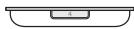
natural_image
Simple line drawing of a cylindrical electronic component with two leads (no text or symbols)natural_image
Simple line drawing of a cylindrical electronic component with two leads (no text or symbols)natural_image
Simple line drawing of a rectangular container with a handle and side slot (no text or symbols)iPod

natural_image
Illustration of a vintage office monitor with a CD and an LCD screen (no text or symbols)
20 Go, 30 Go et U2 Special Edition

40 Go et 60 Go
iPod nano
natural_image
Illustration of a vintage electronic device with a circular button and a screen (no text or symbols)
1 Go, 2 Go et 4 Go
iPod avec vidéo
natural_image
Illustration of a iPod CD with a blank front panel (no text or symbols on the disc)
30 Go

60 Go et 80 Go
natural_image
Front view of a silver iPod with a black control knob labeled 'MENU' and 'II', no additional text or symbols visible.
2 Go, 4 Go et 8 Go
natural_image
Simple line drawing of a cylindrical electronic component with three leads (no text or symbols)natural_image
Simple line drawing of a cylindrical object with a pointed tip and two vertical lines at the bottom (no text or symbols)natural_image
Simple line drawing of a rectangular container with a side slot (no text or symbols)iPod
natural_image
Illustration of a CD or DVD device with a square top and circular base (no text or symbols)
20 GB y U2 Special Edition

20 GB, 30 GB y U2 Special Edition
iPod nano
natural_image
Illustration of a vintage mobile phone with a screen and control knob (no text or symbols)
1 GB, 2 GB
y 4 GB
iPod con
vídeo
natural_image
Illustration of a vintage electronic device with a CD and monitor (no text or symbols)8

30 GB
natural_image
Illustration of a silver iPod with a black screen and two control buttons labeled 'MENU' and 'II', no text or symbols beyond the labels.
2 GB, 4 GB
y 8 GB

40 GB

40 GB y 60 GB

60 GB y 80 GB
natural_image
Simple line drawing of a cylindrical electronic component with three leads (no text or symbols)- Contents
- iPod Hi-Fi
- User's Guide
- Congratulations on your new iPod Hi-Fi.
- iPod Hi-Fi Front View
- iPod Hi-Fi Rear View
- Setting Up Your iPod Hi-Fi
- 2
- Step 1: Plug In Your iPod Hi-Fi or Insert Batteries
- Step 2: Connect Your iPod
- Step 3: Play Music
- Connecting iPod
- To connect an iPod with a dock connector:
- Changing iPod Screen Settings
- Connecting Other Audio Devices or an iPod Without a Dock Connector
- To play music from another audio device through your iPod Hi-Fi:
- To switch playback from an iPod to a device connected to the audio input port:
- To play audio from your computer using your iPod Hi-Fi:
- Adjusting the Sound
- To adjust the volume:
- To change equalizer settings:
- To increase the bass or the treble:
- Using the Apple Remote
- Using the Remote with iPod
- Using the Remote With Another Audio Device
- Changing the Battery
- Pairing Your iPod Hi-Fi with the Remote
- To set your iPod Hi-Fi to work only with the included remote:
- To reset your iPod Hi-Fi to work with all Apple Remotes:
- Saving Battery Life
- Most problems with your iPod Hi-Fi can be solved quickly by following the advice in this chapter.
- If your iPod Hi-Fi won't play music or respond
- If your iPod won't respond
- If the remote isn't working
- If your iPod Hi-Fi isn't playing music from another device
- Learning More, Service, and Support
- 5
- Safety and Regulatory Compliance
- Online Resources
- Obtaining Warranty Service
- Finding the Serial Number of Your iPod Hi-Fi
- ユーザーズガイド
- 目次
Brand : APPLE
Model : IPOD HI-FI
Category : Speaker